




Following the request made to us by some clients, we are going to explain how we can customise the translations of the recently released WooCommerce 2.2, and protect the customised language files against future WooCommerce updates.
What do we need?
We need an FTP manager, such as the magnificent FileZilla, to be able to move four files from one folder to another, and from that one to another, and a fantastic WordPress plugin called CodeStyling Localization.
If we try to edit the Spanish language of WooCommerce 2.2 directly with CodeStyling Localization, we will find that no language appears, whereas in earlier versions they did appear, so we are going to look step by step at what we have to do in order to be able to edit the Spanish language correctly.
Step by step
The first thing we are going to do is access our server by FTP, so we must have an FTP manager installed and the Server, User name and Password details. Once we have logged in, we will go to the path /wp-content/languages/plugins, and there we will copy the following files:
- woocommerce-admin-es_ES.mo.
- woocommerce-admin-es_ES.po.
- woocommerce-es_ES.mo.
- woocommerce-es_ES.po.
Once we have them copied, we go to the path /wp-content/plugins/woocommerce/i18n/languages, where we will paste them.
And now what?
CodeStyling Localization
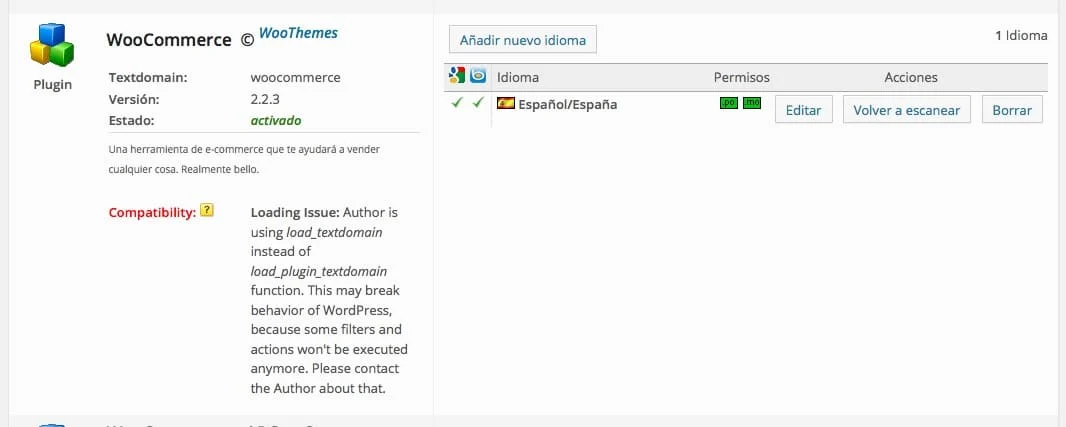
Now we go back to WordPress and go to Tools -> Localization, from where we will access the CodeStyling Localization panel, which we can see in the image on the right.
Before carrying out any operation we will click on the Rescan button and on the Scan now one that appears in the pop-up window.
Once the operation has finished, we can close the window by clicking on Finished and click the Edit button to begin customising the Spanish language files according to the needs of our online shop.
For all the modifications and customisations we make to take effect, we must click the button called Generate mo-file, which will save the new texts in the files we copied in the initial step.
Finishing the process.
We have now customised the files, but they are in a path that is currently completely unreadable for WooCommerce 2.2, so we will open our FTP manager again and go once more to the last path indicated above: /wp-content/plugins/woocommerce/i18n/languages, where we will copy the newly generated files, which keep the same names and extensions, and we will paste them into the path /wp-content/languages/, although in a different folder from plugins.
To do so we must create a folder called woocommerce, whose full path will be /wp-content/languages/woocommerce, and where we will paste the files we have just modified and copied.
Conclusion.
In this way, by creating the new folder /wp-content/languages/woocommerce, we make sure that the modification we have just made to the Spanish language files remains unalterable through future WooCommerce updates, whereas if we paste the files into their original path, /wp-content/languages/plugins, when we update to the future version 2.2.4, all the work done will be lost for ever.
We hope this tutorial helps you to customise the WooCommerce texts according to the needs of your online shop and helps you keep your translations unchanged throughout the coming WooCommerce updates, although you will certainly have to roll up your sleeves and carry out these operations again in future versions, for example in 2.3.
Related posts



Comments
Products and services
-
 GDPR compliance
From: 145,20 €
-
 WP Total Updater
From: 42,35 € / MONTH
-
 Performance Improvement
From: 181,50 €
-
 WC - APG Cont4
-
 Virus removal
From: 242,00 €

Art Project Group is now available in English. The whole site is translated: every plugin page, the full documentation and the support centre.
artprojectgroup.com #WordPress #WooCommerce
How do you set up WC - APG Cont4?

¿Cómo se configura WC - APG myGESTIÓN?

¿Cómo se configura APG Multisite Suite?
Se ha publicado #WordPress 7.1.4: actualización de seguridad que corrige vulnerabilidades detectadas en el núcleo.
Al tratarse de una actualización de seguridad, se recomienda actualizar inmediatamente.



Gran articulo, pero tengo una pregunta: que pasa si con la nueva version de woocommerce introducen nuevas frases que no están contenida en mi archivo de traducciones? muchas gracias
Gracias Angelo.
La verdad es que no pasa nada, sólo tendrás que volver a CodeStyling Localization, volver a pulsar en Volver a escanear, traducir las nuevas frases, y volver a realizar el último paso, es decir, copiar los archivos modificados a la ruta /wp-content/languages/woocommerce.
Simple y sencillo ;-).
Un saludo.
Excelente la ayuda! muy bien explicado ademas y muy fácil de seguir, muchas gracias!
Hola, tengo la versión 2.2.4 de woocomerce y creo que lo que comentis no se puede realizar… Al menos no tengo la carpeta languages, en la ruta que comentais wp-content/languages/plugins, y tampoco encuentro los archivos..
woocommerce-admin-es_ES.mo.
woocommerce-admin-es_ES.po.
woocommerce-es_ES.mo.
woocommerce-es_ES.po.
¿Alguien me podria ayudar?
saludos.
¿Tienes instalado WordPress 4.0?
Hola, actualice la ultima versión de WordPress 4 y de woocommer 2.24 y la tienda me quedo en ingles, como puedo ponerla en español?
Debes actualizar el idioma, normalmente te sale un mensaje para ello.
Si ves que no puedes, recuerda que tienes a tu disposición nuestra Soporte técnico.
Un saludo.
Hola!
habéis probado el Codestyling Localization en wordpres 4.0 o superior? El plugin pone up to 3.5.2. Funciona igualmente?
Gracias!
Funcionar, funciona, aunque no es funcional al 100%, ya que no es capaz de leer los archivos almacenados en la carpeta /wp-content/languages.
Un saludo.
gracias!
Muchas gracias por la guía, lamentablemente y al seguir todos lo pasos no logro que la traducción sea visible en mi sitio, me llama la atención la advertencia que me hace el plugin de localización:
“Compatibility: Loading Issue: Author is using load_textdomain instead of load_plugin_textdomain function. This may break behavior of WordPress, because some filters and actions won’t be executed anymore. Please contact the Author about that.”
¿Alguien me podría guiar?, gracias de ante mano.
Ese mensaje sale por diversas causas, desde que el archivo de idioma no es localizable en la ruta indicada en el código fuente del propio plugin, hasta que existe algún tipo de incompatibilidad en el mismo.
Recuerda que si necesitas ayuda, tienes a tu disposición nuestra Soporte técnico.
Un saludo.
Pues a mi en la 2.2.11 no me funciona, teneis idea de porque , hemos realizado todos los pasos.
Algo has hecho mal, ya que en esa versión funciona perfectamente el proceso descrito. Estamos hartos de hacerlo a diario ;-)
Un saludo.
Pues ni idea ya, lo raro es que parte de woomerce esta traducido pero la parte del carrito no y esta todo metido, si es cierto que antes de ver vuestro tutorial ya lo habia intentado a mi manera, se puede retear todo y empezar de nuevo?
Si pago la consulta tecnica lo podeis solucionar antes del lunes? Este proyecto me urge y el lunes a las 9 debe estar la web publicada
Si.
Necesitamos, obviamente, los datos de acceso al FTP además de todos los datos que te va a pedir el formulario de compra de Soporte técnico.
Dinos exactamente lo que quieres traducir y su traducción. Ten en cuenta que puede ser que esas traducciones no se encuentren en WooCommerce, si no en el tema.
Un saludo.
GENIOSSSSSSSS….. Gracias….!
No puedo compartir lo increiblemente agradecido que estoy con esta info. Os juro que me estaba volviendo loco, llevo una semana con esto, dios casi renuncio a mi negocio y todo. Mil Gracias!