




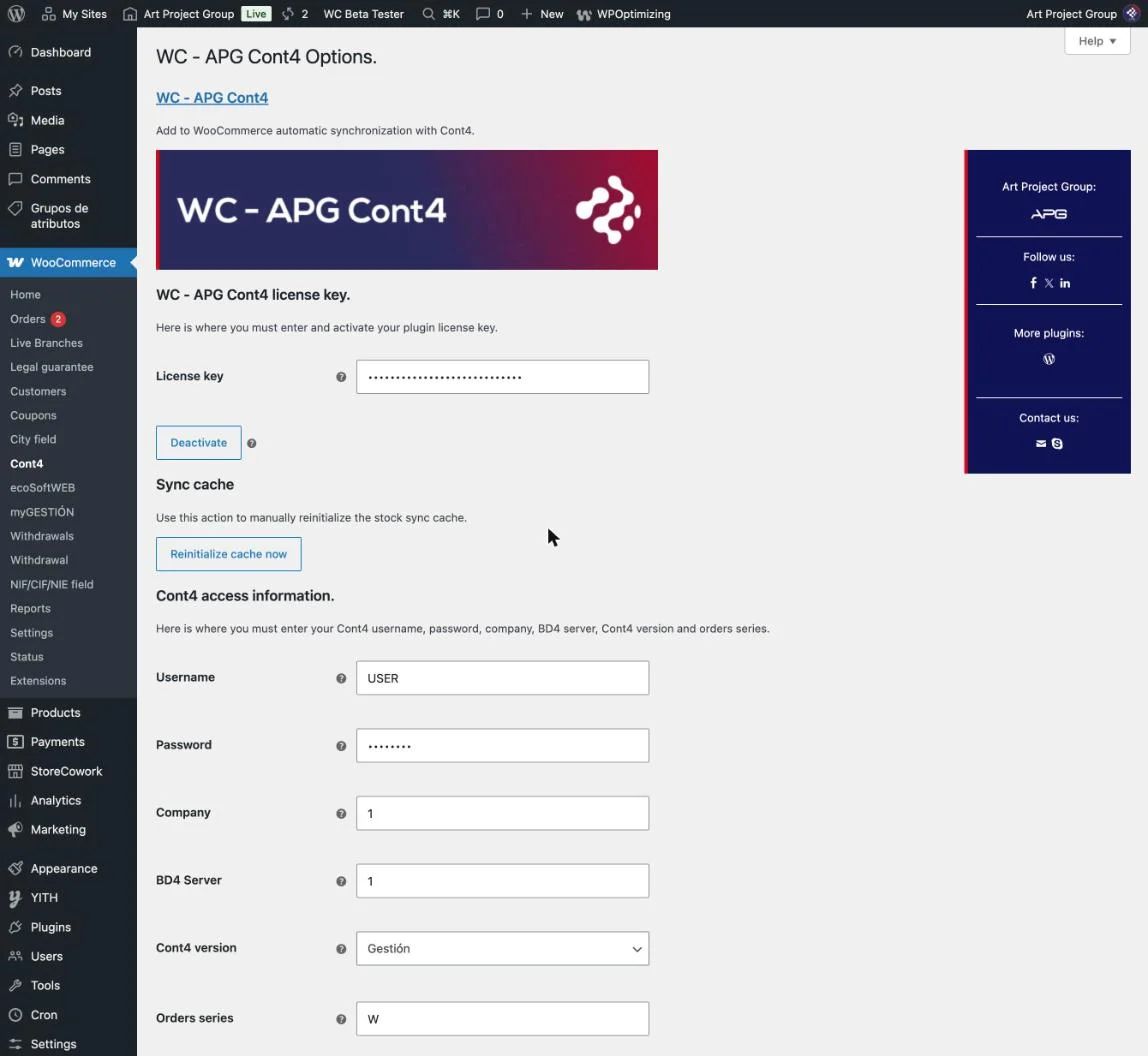
Lately we have been getting a good number of enquiries from WC - APG Cont4 clients who are not entirely clear about what the plugin does with their orders and their inventory, so at APG we have decided to go through the whole of its configuration, section by section, and explain along the way why the website’s stock sometimes does not match what you see in Cont4.
All the configuration lives in WooCommerce -> Cont4, and it is best to fill it in in the order it appears, because each section needs the previous one to be settled.
Before setting up WC - APG Cont4
You need a shop with WooCommerce and a subscription to Shop API4, which is the service that opens your Cont4 up to the Internet so that the shop can talk to it.
When you subscribe they will give you the access details you are going to need later on: username, password, company code and BD4 server.
And there is a third condition that is very often overlooked: the reference (SKU) of each WooCommerce product or variation has to be exactly the item’s code in Cont4, because it is the only way the plugin has of knowing which item each product in the shop corresponds to.
The license
It comes first and it is essential, because while the license is not active the plugin sends no orders and reads no stock.
Enter the license we sent you with your purchase and click Activate, and if you are going to move the shop to another domain remember to deactivate it beforehand from this same screen, because each license is active on one site at a time.
The plugin checks the license against our shop periodically, and if more than seven days in a row go by without it being able to, it stops working, but it starts again on its own as soon as it manages to.
Access to Cont4
Here go the details Shop4 gave you when you subscribed to Shop API4:
- Username and Password: those of your Cont4 access.
- Company: the code of the Cont4 company you want to send the orders to.
- BD4 server: the code of the BD4 server assigned to you.
- Cont4 version: the version you use, Facturación (invoicing) or Gestión (management).
- Order series: the Cont4 series the shop’s orders will be created in, which is best kept separate so you can tell them apart from the counter ones at a glance.
The NIF/CIF field
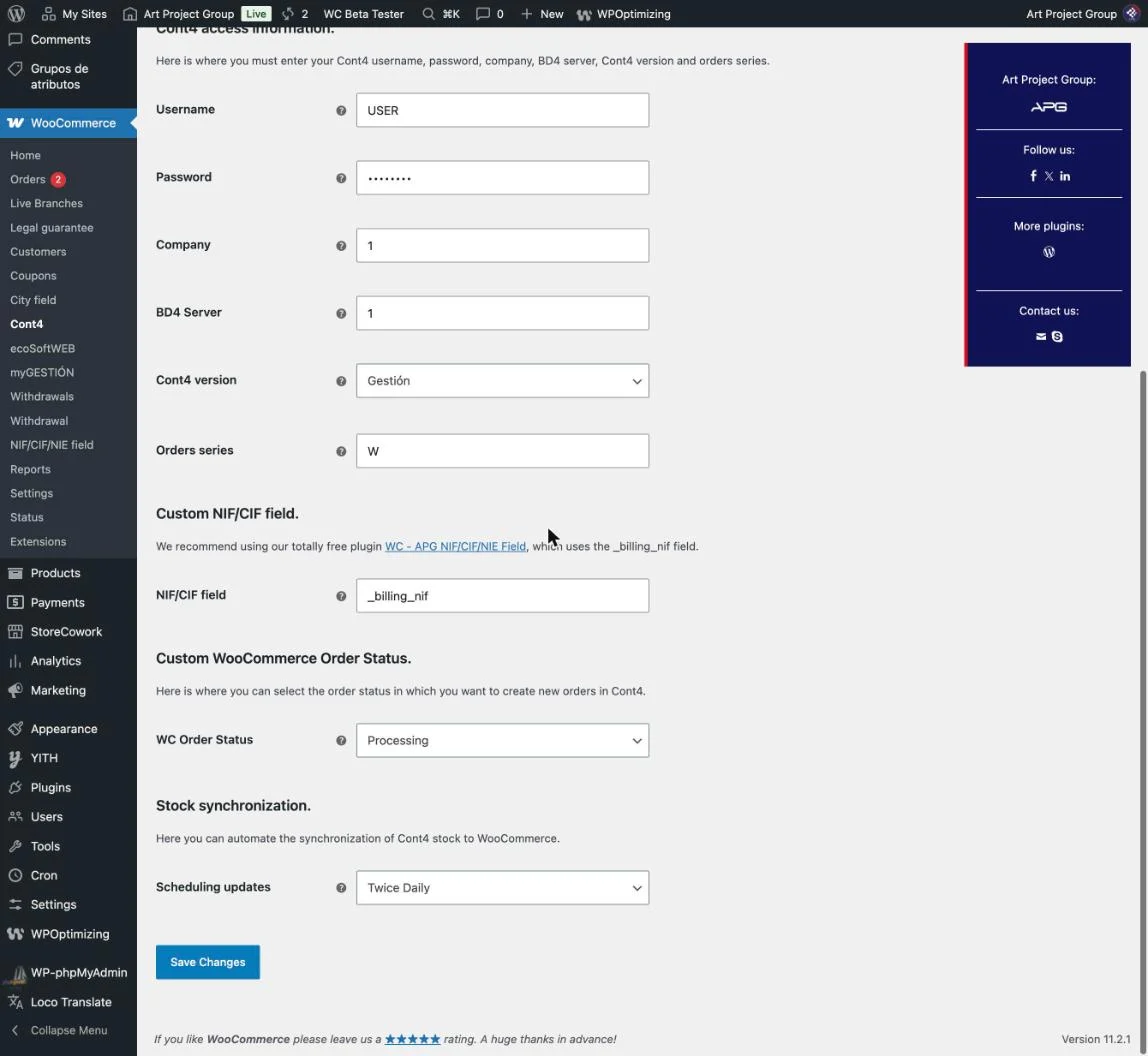
It is the shortest section of all and yet the one that causes the most discrepancies when it is left wrong.
When an order goes out to Cont4, the plugin looks up the customer’s record by their NIF, and only if it does not find it does it create a new one with the order’s billing details.
If you use our free plugin WC - APG NIF/CIF/NIE Field, the value you have to write here is _billing_nif, which is the one that comes by default, and if the field is left empty or with the wrong name the plugin will not be able to find your customers and will try to create a new one with every order.
The order status
Here you choose which WooCommerce status the order goes out to Cont4 in, and the usual one is Processing, which is the status paid orders are left in.
The order reaches Cont4 with one line per product, with its code, its quantity and its price, and with the shipping as carriage and the order’s additional charges as packaging.
Each order is sent only once, and in the WC - APG Cont4 box on the order screen you will see the message Order processed and sent correctly when Cont4 has accepted it.
If something fails, the reason is noted in the order notes, and once corrected you can resend it with the Send order to Cont4 button in that same box, or resend several at once from the order list with the Send to Cont4 bulk action, which skips the ones that have already been sent.
Stock synchronisation
It is worth being clear about which direction the stock travels in, because it is the cause of most of the enquiries we get: it always goes from Cont4 to WooCommerce, never the other way round.
In Update schedule you choose how often the inventory is transferred, from every five minutes to once a week, and the higher your shop’s turnover, the shorter the interval should be.
If you choose Once a day, the Stock update time field also appears, with which you decide what time it syncs at, and the most practical thing is to pick one in the early hours, when the shop has hardly any activity.
On each pass the plugin collects all the published products and variations that have a reference, asks Cont4 for their stock and writes it to the shop, turning on inventory management along the way for the products that did not have it.
So as not to rewrite the whole shop every few minutes, the plugin remembers the last thing it read for each item and only writes when Cont4 changes, and the Reset cache now button forces the next pass to write everything again.
Why does the website’s stock not match Cont4’s?
The first thing to look at is the reference: if the SKU of the product or the variation is not identical to the item’s code in Cont4, is longer than fifteen characters, or the product is a draft or the variation is disabled, the plugin does not synchronise it.
The second is the units pending delivery, which are the ones that raise the most questions: if you see units in the Servir (to deliver) field on the Cont4 item record, they are units committed to customer orders that have not been delivered yet, and they do not go back on sale on the website.
This happens a lot when the orders that arrive from the shop are handed over without being delivered from Cont4, for example with a separate ticket or delivery note, because the order stays pending for ever and those units are deducted twice.
And the third is changes made by hand: if you correct a product’s stock directly in WooCommerce, the plugin does not touch it again until the item changes in Cont4, so after a manual correction click Reset cache now and the next synchronisation will leave the shop the same as Cont4.
The help inside the plugin
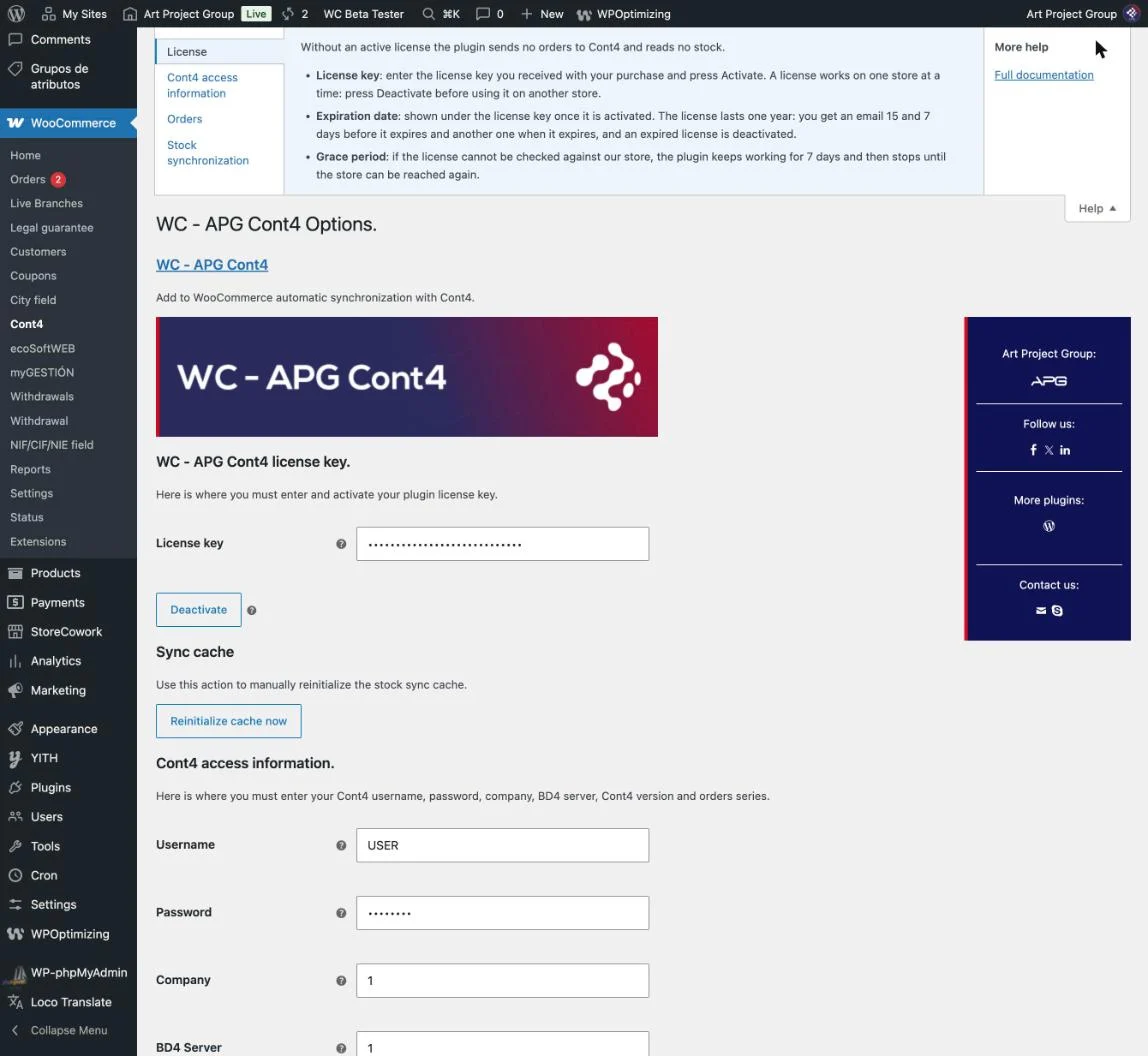
You do not need to remember all of this, because the settings screen itself has it explained: click Help, at the top right, and you have one panel per section with all its fields.
And if you want the full detail, with its screenshots and its frequently asked questions, you have it in its complete documentation, which is where the link in the sidebar of that same tab takes you.
Conclusion
Thanks to these five sections your shop and your management software stop being two islands, the orders reach Cont4 on their own and the website’s inventory stays up to date without you having to touch it.
If something does not quite add up after setting it up, check your products’ references and the orders pending delivery in Cont4 first, as they are by far the two places where most of the problems hide.
And if your management software is not Cont4, in Do you need to connect your WooCommerce to an ERP? we tell you how we handle these bespoke integrations.
We hope you find this short tutorial useful and we look forward to your comments and contributions.
Related posts



Comments
Products and services
-
 WC - APG ecoSoftWEB
-
 Custom Fields Starter Kit
121,00 €
-
 Website migration
242,00 €
-
 Multilingual Starter Kit
121,00 €
-
 APG Multisite Suite
From: 95,59 €From: 71,39 €

Se ha publicado #WooCommerce 11.2.2: actualización de seguridad que refuerza las API REST y Store, mejora la validación de CSV y corrige problemas en pagos y pedidos. Incluye cambios en la base de datos.
¡Actualiza cuanto antes!
¿Cómo se configura WC - APG myGESTIÓN?

¿Cómo se configura APG Multisite Suite?
Se ha publicado #WordPress 7.1.4: actualización de seguridad que corrige vulnerabilidades detectadas en el núcleo.
Al tratarse de una actualización de seguridad, se recomienda actualizar inmediatamente.
¡Nuevo plugin premium para WordPress Multisite!